 Google Map Leads
Guide
Google Maps lead generation: from search to a list you can call
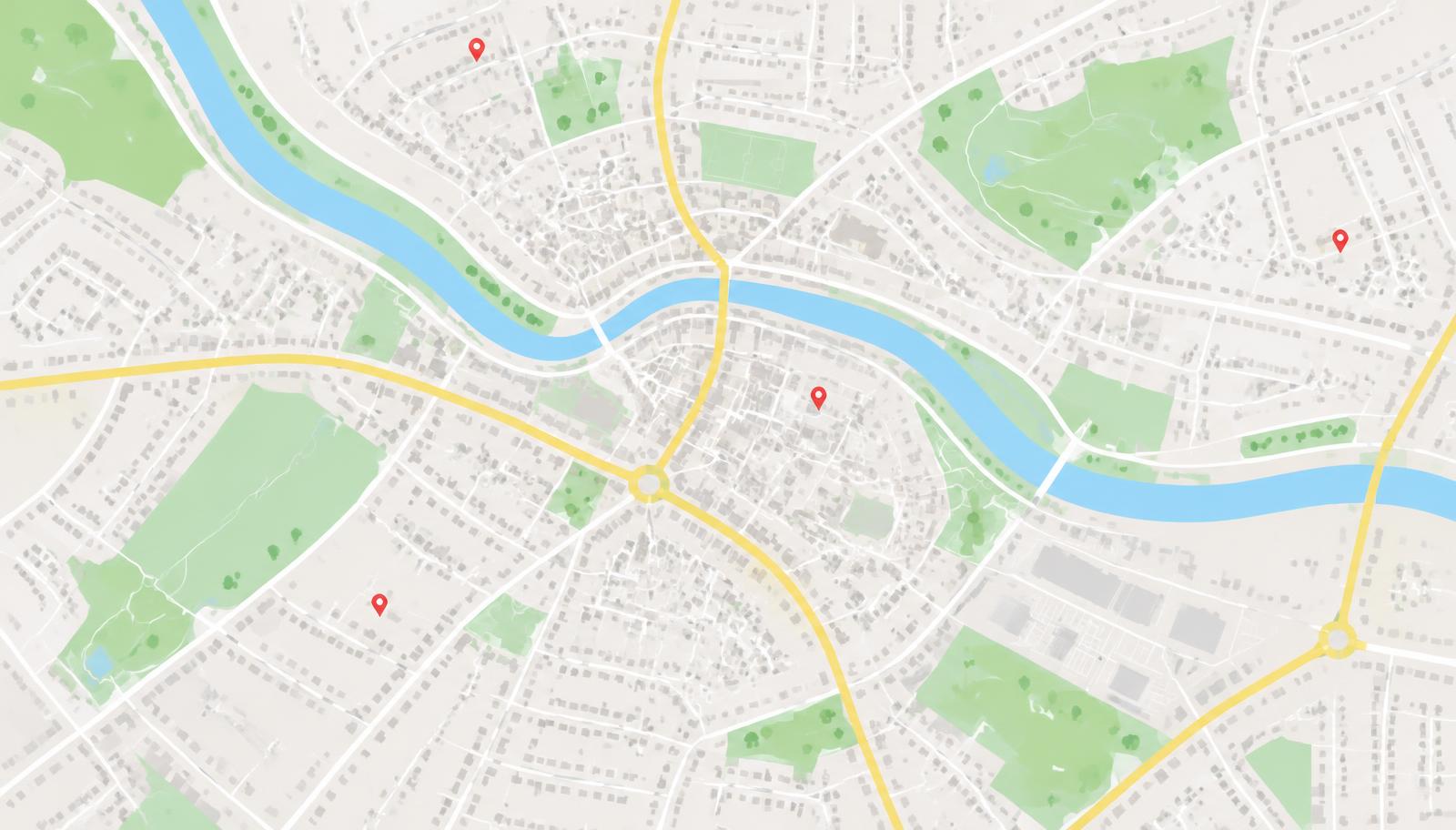
Google Maps already lists almost every local business in the place you sell to. Lead generation is the work of turning those listings into a spreadsheet of businesses you can actually contact — and doing it well means covering more than the first screen of results, keeping only the prospects you want, and getting the details out in a format your CRM accepts. Here's the whole workflow, end to end.
Why Google Maps works for local lead generation
Maps listings are public, current and self-declared: the business chose its category, phone number and opening hours, and it's usually still trading. That makes them a better starting point than a bought list, which is often stale and rarely tells you anything about the business itself. The catch is volume — one search shows a limited slice, and copying details out by hand takes minutes per business. The rest of this page is about solving both.
The lead generation workflow, stage by stage
1. Decide who you're selling to
Lead generation starts before the scan. Write down the trade you sell to — roofers, dentists, garages, cafés — and the market you can actually service: one city, one county, one country. A narrow, well-defined list converts better than a big vague one.
2. Search the way a customer would
Open Google Maps and search for that trade in that place: "roofers in Leeds", "plumbers in Manchester", "dentists in Austin". This is the same search your prospects make, which is why the listings it returns are real, trading businesses.
3. Scan past the first page
One Maps search returns roughly 120 results and stops. Google Map Leads repeats the search across a grid of squares over the town — Small (1 square), Medium (3×3) or Large (5×5) — and can run that grid over a list of towns one after another: the top 100 world cities, city lists in 45 countries, every UK city and town, or a list you type in yourself.
4. Filter while it collects
Keep every business, only ones with a website, or only ones without. Keep all phone numbers, or mobile numbers only — recognised in 40 countries. Filtering during the scan means the sheet you export is already the list you'll work from.
5. Review, then export
Open the results table to search the rows, check a few listings, and remove anything off-target. Then export to CSV or Excel — one row per business, ready to load into a CRM or a spreadsheet.
6. Work the list
Sort by website status, split by country and region, and contact businesses in the order that suits your offer. Keep the Maps link on each row so you can reopen the original listing before you call.
The extension does stages 3 to 5. Installing it takes a couple of minutes: download the ZIP, unzip it, open chrome://extensions in Chrome, Edge or Brave, turn on Developer mode, click Load unpacked and pick the folder. The full walkthrough is in the Google Maps lead finder guide.
Five ways to aim the same scan
The filters are what turn a list of businesses into a list of prospects. The same trade, scanned with different settings, gives you a completely different campaign.
Businesses with no website
Set the website filter to "without". These are prospects for web design, and the export's website status column makes the split permanent even if you scan a mixed list.
Businesses with a website
Set the filter to "with". These already spend on being found, so they're prospects for SEO, paid ads or marketing management.
Mobile-only outreach
Set the phone filter to mobile only. Useful when you're texting or messaging rather than calling a landline — recognised in 40 countries, including the UK, most of Europe, Australia, India, Japan and Brazil.
Reputation and reviews
The export carries rating and review count. A low score or a handful of reviews can point to a business that needs help with visibility.
New markets
Run the same trade over a list of towns in another country. The export's country and region columns keep markets apart so each campaign gets its own sheet.
What the export gives you
One row per business, in CSV or Excel, with these columns:
| Column | What's in it |
|---|---|
| Name | The business name as it appears on Maps. |
| Website | The listing's website, left blank when the business has none. |
| Website status | Has website or no website, so you can sort the sheet straight away. |
| Phone | The listed phone number. |
| Mobile | The number again when it looks like a mobile — useful for SMS and WhatsApp. |
| Address | Street, town and postcode. |
| Country | Which country the business is in, so you can split the sheet by market. |
| Region | The state, county, province or region inside that country. |
| Category | The business type Maps files it under. |
| Rating and reviews | How many reviews and what score it has. |
| Maps link | A direct link back to the listing. |
How long a scan takes, and what stops it
A scan opens each listing in turn, so it takes as long as the listings take to load — a town grid runs through hundreds of them. Two things matter when you leave one running. A listing that won't open is retried once and then skipped, so a single dead end doesn't cost you the run, and slow areas reload automatically. The scan only ever stops for a genuine Google captcha: it waits for you to complete it, then resumes. Duplicates are skipped and leads persist between searches, so a second run adds to the list rather than starting over.
Costs: what's free and what isn't
The free plan scans up to 25 leads and exports them as CSV from the current map area — enough to check the details are clean before you rely on it. Pro removes the cap, adds Excel export and every town-list scan mode, and costs $25 a month or $199 a year, payable in your local currency. Compare plans.
Before you contact anyone
The extension collects publicly listed business details. How you use them is your responsibility — check the marketing rules where you and your prospects are, like GDPR and PECR in the UK, CAN-SPAM in the US or PDPA in Singapore, before calling, texting or emailing businesses from a list.
Related: the lead finder guide for the full search-to-export walkthrough, the country pages for the built-in city lists in each market, and the scraper comparison if you're weighing an extension against other approaches.